
You can add more people to your team. Each new person you invite will join your public workspaces automatically, unless they are invited as guests.
All invited people will get an email with steps on how to join the team.
In orgnise you can invite people to your team in two ways:
- Invite people using email
- Invite people using a link
Note: You can only invite people to your team if you are a Moderator or Owner of the team.
Invite people using email
- Go to team settings page

Team settings tab - Select People tab
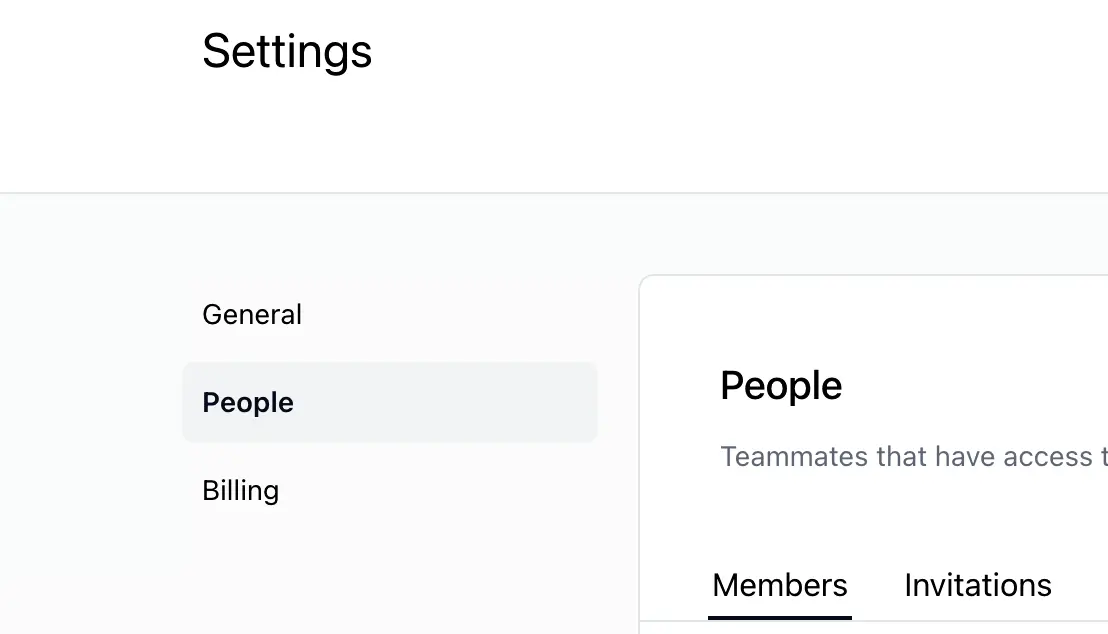
Team settings tab - Click on the Invite button
- Enter the email address of the person you want to invite
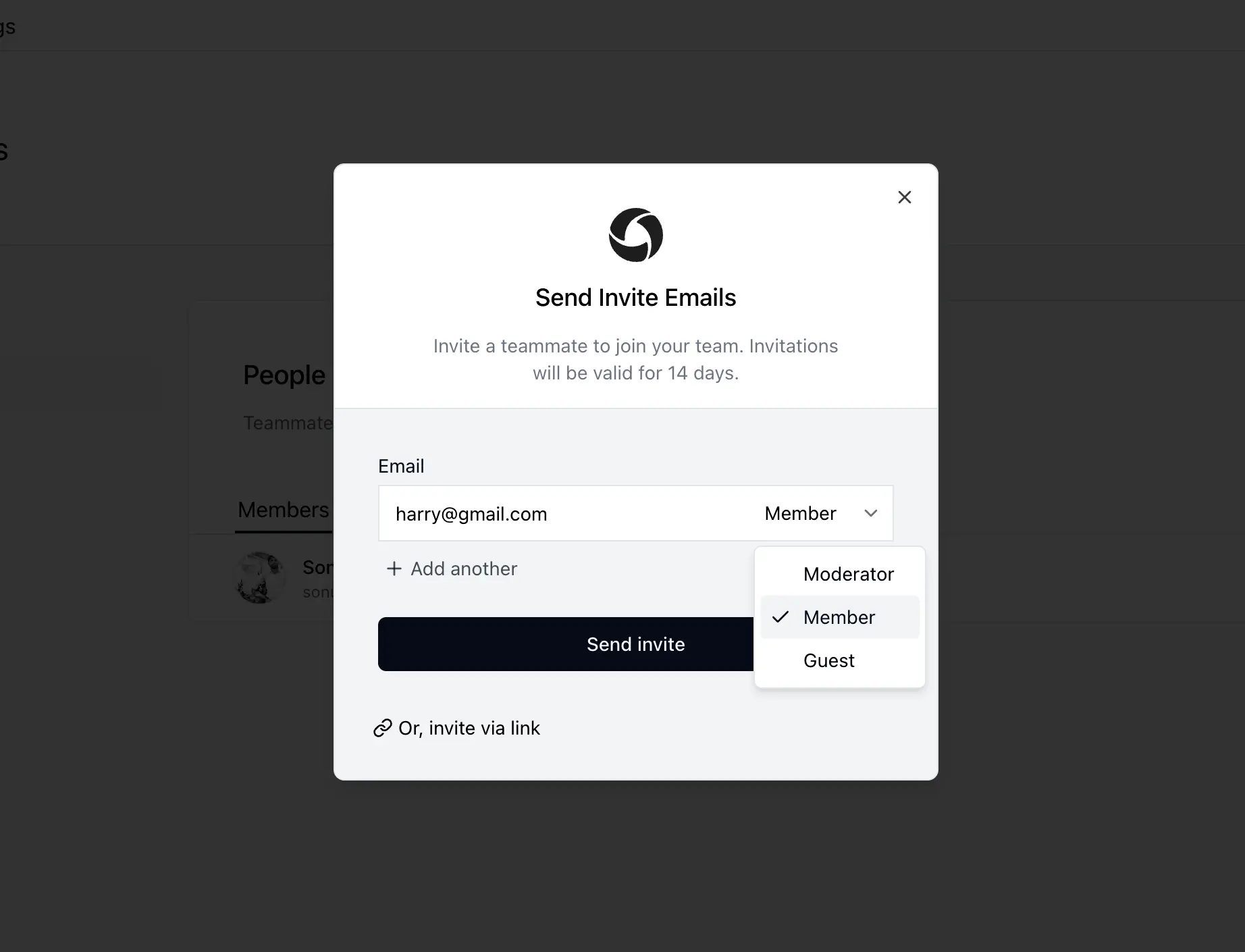
Team settings tab - Select the role (Moderator | Member | Guest) of the person you want to invite
- If you want to invite multiple people at once, you can click on the Add another button to add more email addresses
- Click Send Invite button to send the invite
If you invite someone to your team as a guest, they won't be added to the any public or private workspaces by default. They'll be have limited acess and won't be able to create new workspaces or invite other people to the team. For more information on roles, see Roles and Permissions
Invite people using a link
-
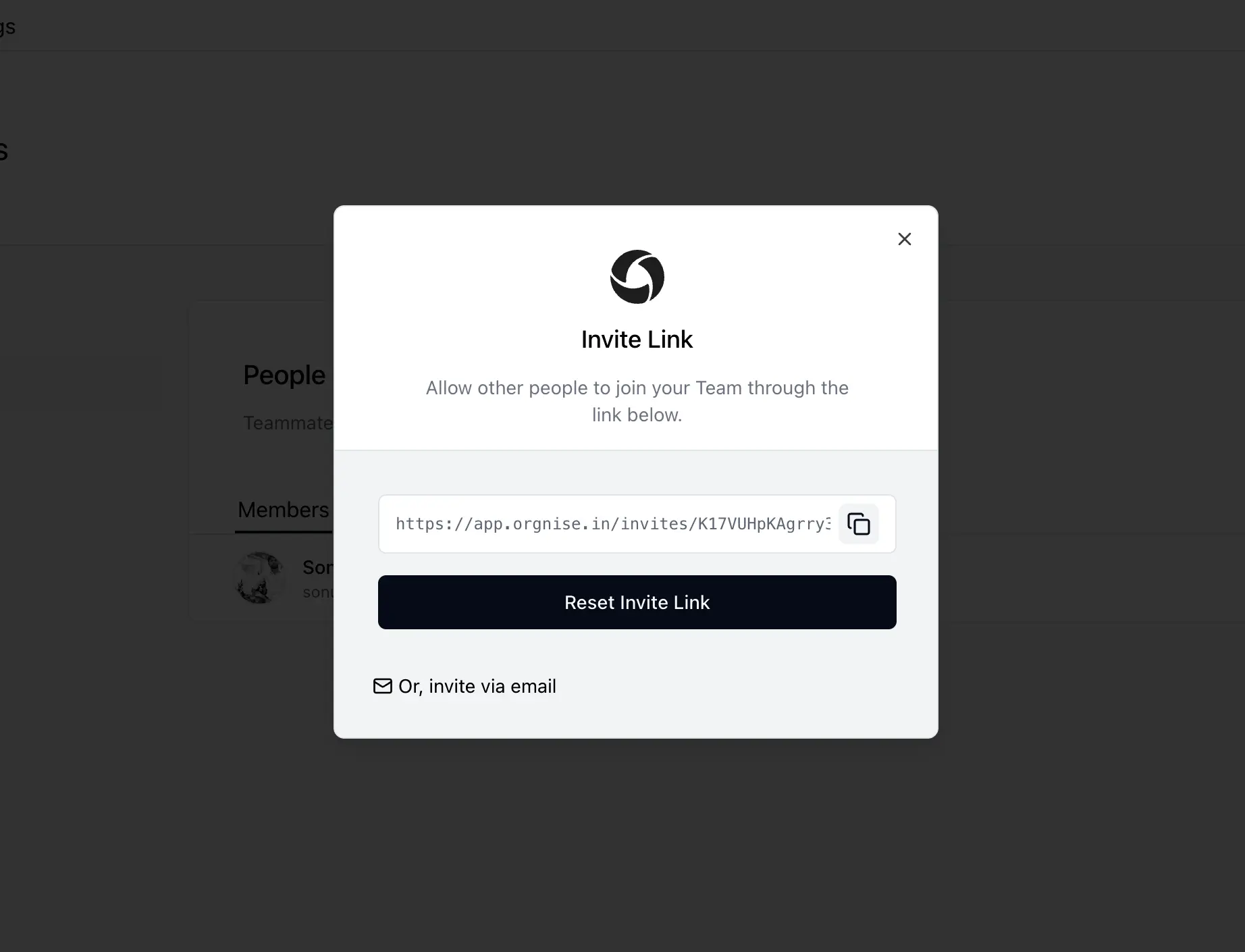
Click on the Invite button
Invite people using link -
Click on the Invite via Link button
-
Click on the Copy Link button
-
Share the copied link with the person you want to invite